How to edit PDF on Mac
You can't escape them — PDFs are everywhere, especially in the workplace. Although convenient to read, PDFs can be tricky to deal with if you just need to make quick changes to the text, sign a form, or send a file through a size-restrictive platform. Yeah, you can find yourself in some issue even when you want to edit pdf on your Mac.
Apple provides every Mac with Preview, a free program that allows you to read and edit PDF files (add and highlight text, combine PDF documents and transfer pages from one PDF to another, add a signature and comments).
Here is different way to edit a pdf on mac with Preview
How to type on a PDF, add text and notes
Open the PDF in Preview and try to add text by clicking on the target text field. If it doesn't work, you'll have to add a new text or note field:
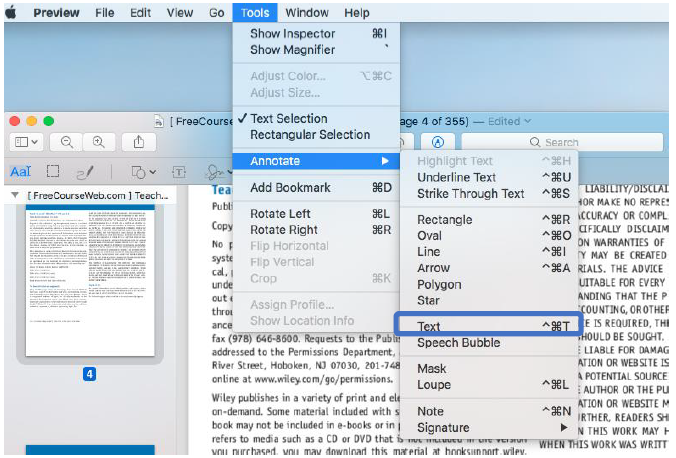
1. Select Tools > Annotate > Text/Note.
2. Click on the text/note box that appears in your document and start typing.
3. Close the box by clicking outside it. You can move the note/text field anywhere via drag and drop.
4. To customize fonts or color of text, select View > Show Markup Toolbar > A
Highlight text in a PDF
To activate the highlight mode in Preview, select the Highlight button in the top right corner. Click on the down arrow next to the Highlight button to change color, or choose an option to underline or strikethrough.
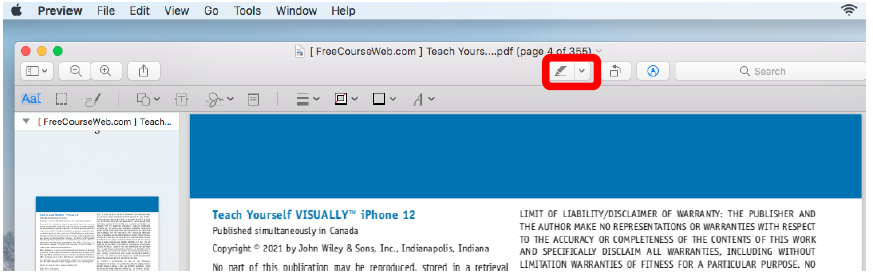
When switched on, highlights will be applied to any text you click on. You can switch it off by clicking on the same Highlight button.
To view notes and highlights in the PDF, select View > Highlights and Notes.
Combine multiple PDFs
1. To merge PDF files, open one PDF in Preview.
2. Select View > Thumbnails to see the thumbnails of all pages.
3. Click on Edit > Insert > Page from file and open another PDF.
4. Choose destination and save the updated file as PDF..
Rotate, delete, rearrange pages inside a PDF
You can cut pages out or change the order of pages in a few steps via thumbnails:
1. Select View > Thumbnails.
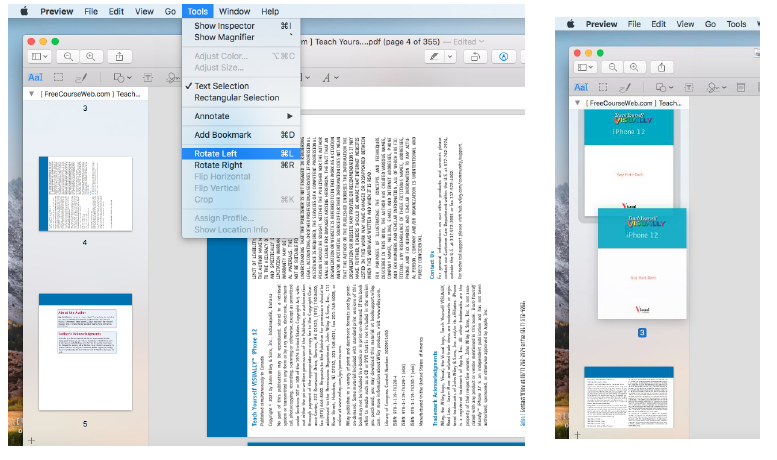
2. To rotate, click on a page thumbnail > Tools > Rotate Left or Right.
3. To delete pages in a PDF, select thumbnail > Tools > Delete to remove a page from your PDF.
4. Rearrange by dragging pages around in the sidebar.
Split PDF files
To separate pages in a scanned PDF, simply drag the page you want to remove from the thumbnails pane to desktop. If needed, you can combine those pages into a separate PDF file afterwards.
How to reduce PDF size
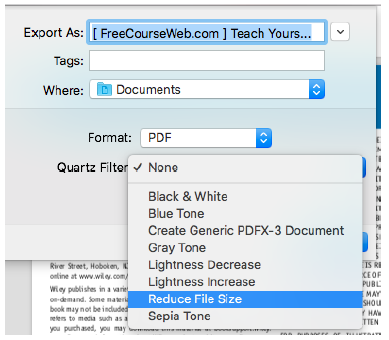
You can compress your PDF in Preview while exporting the doc. Once you're done with editing :
- Select File > Export.
- Click on Quartz Filter to open the pop-up menu > Reduce File Size.
Add comments and annotations to a PDF
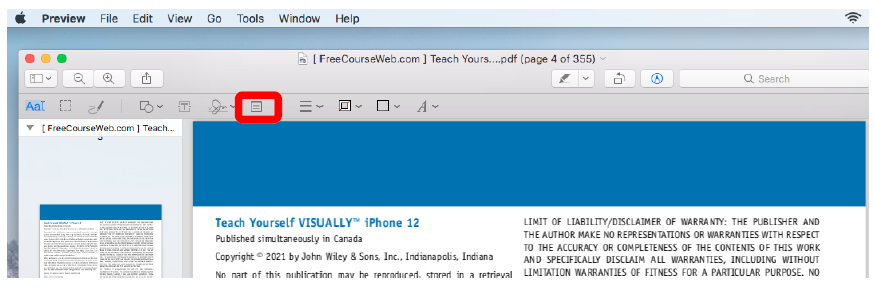
To help yourself with extra notes or annotations, you can add comments directly onto a PDF. Comments can be useful to readers when you want to provide extra information about certain parts of the document.
To comment and make notes on PDF:
1. Click on the note tools in the toolbar
2. Tap on the area of the document where you want the comment or note to appear
3. Type in the comment or note area field
4. Drag the comment or note text box to the desired area on the document
Fill and sign PDF forms (e-sign)
Now you can easily add your signature to digital forms and documents in macOS.
To sign your PDF file with Preview app:
1.Open the document you want to sign
2. In main menu go to Tools > Annotate > Signature > Manage signatures
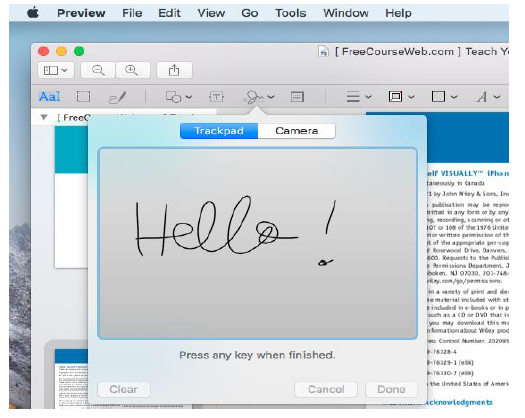
3. To create signature, tap to Click Here to Begin, draw your signature on the trackpad, press any key when finish, and then Done
4. You can also scan your handwritten signature - write it on a piece of paper, hold to be visible to the camera, and Preview will draw a virtual signature.
5. Choose the signature created to insert it into the document. Drag, resize and correct position of your sign like a regular image