
How to transfer music to iPhone
As you probably know, iTunes can help you transfer music to iPhone from a computer. Although the process can be a bit complicated with a lack of customization, it offers a free solution to copy its music to an iPhone or iPad.
Just make sure that the version of iTunes you are using is compatible with your iOS device. To do this, you can go to its menu and check the updates.
Once done, follow these steps
Manually add items from iTunes
1. Connect your iOS device to your computer.
2. Now, you have to launch iTunes on your computer. Please ensure that you have the latest version of iTunes installed on your computer.
3. After this, visit songs from the left panel, then, you have to select the content that you wish to add to your device from the iTunes library.
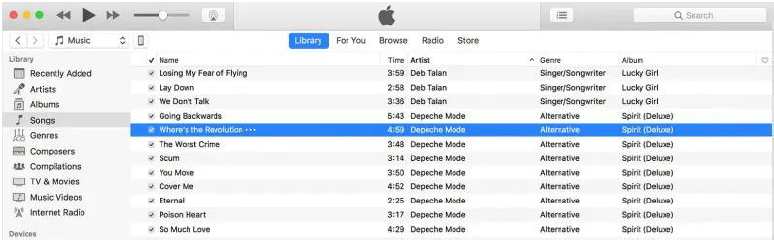
4. You will find your device in the left sidebar of your iTunes screen. After making the selection, drag the file from your iTunes library to your iPhone.
Manually add items from your computer
If you have a media file on your computer that you can't find in the iTunes library, you can transfer that file from your computer to your iPhone using iTunes.
Do the following to know how to download music to iPhone from the computer:
1. First of all, you have to connect your iPhone to your computer.
2. Now, launch iTunes on your computer (Latest version)
3. Now, you have to search your computer for the media file that you want to transfer. If that item had previously appeared in your iTunes library, you will find it in your iTunes media folder.
4. After this, to download music to iPhone, you will have to select the item and copy that.
5. Go back to your iTunes screen and launch the library tab of Music.
6. You will find your iOS device on the left sidebar; you will have to click on it. Now, you will have to click on the name of the item that you want to add. For example, you will have to select tone if you want to add a ringtone.