
How to deal with junk mail on iPhone
Most junk mail (spam) sent to your @icloud.com address or its aliases is automatically identified and moved to your Junk folder. If you receive unwanted email, you can manually deal with junk mail on iPhone by marking them as junk.
Marking spam as junk tells iPhone email clients to update spam filters
Mark Emails as Junk on iPhone
There are a few ways to deal with junk mail. The method you choose depends on where you are in the Mail app or how many emails you want to send to spam at one time.
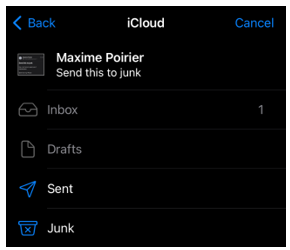
Mark mail as junk from an Open Email
1. In an open email message, choose the Folder icon, then choose Junk. The message moves to the Junk folder.
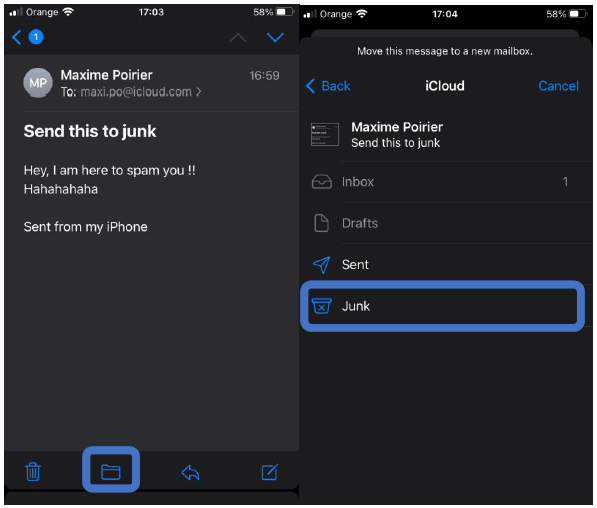
Mark Several Emails from Inbox or Folder
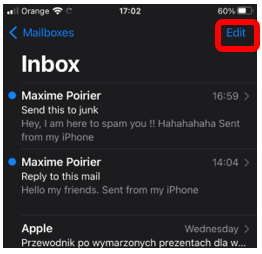
In the list of emails,
1. Tap Edit, select the emails to mark as spam, then choose either Mark > Move to Junk or Move > Junk.
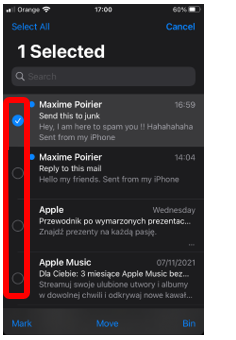
2. Mark > Move to Junk
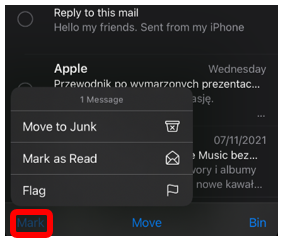
3. Move > Junk
Spam often has a commercial purpose and refers to a product.
Phishing is a scam via fake emails, websites or messages. Cyber criminals lure you to a fake website that is a copy of the real site for the purpose of stealing login information, a password or banking data. Therefore, never click on a link contained in a phishing message.