
How to filter emails on iPhone
First, filtering emails reduces the number of messages in our inbox. For example, we can automatically move an email to labels without it appearing in your inbox. It is also possible to filter emails on iPhone to send them directly to Spam or Recycle Bin.
You can easily filter out the contents of any of your email inboxes from the stock Mail app on your iPhone to find what you’re looking for.
How to view all unread emails in your inbox
To filter an inbox in the Mail app,
1. Launch the app from your Home screen and open one of your inboxes. You can use any of your individual email inboxes, or you can use the unified inbox that shows content from all of your email accounts if you choose to.
2. Once there, tap on the little round button at the bottom left of the screen with the three lines in it. This is the filter button.
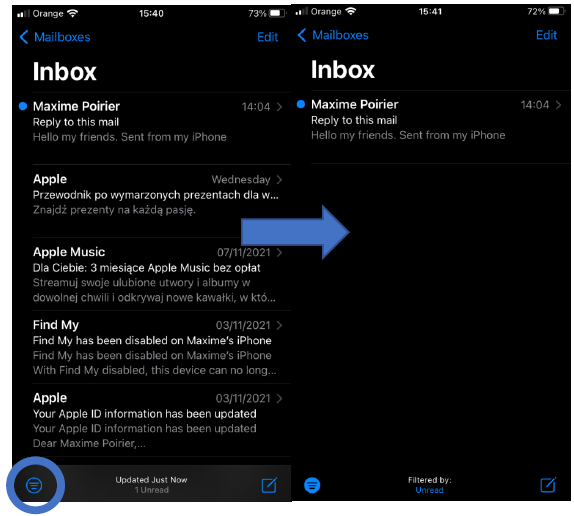
3. As you can see, the filter button is going to filter your inbox by read/unread messages by default.
• Depending on how you use your inbox, this might be helpful, but you can further customize how your inbox gets filtered if you really wanted to.
You can customize filtering options
To do that,
1. tap in the middle of the bottom bar in the app that says “Filtered by:” and you will be presented with even more filtering options
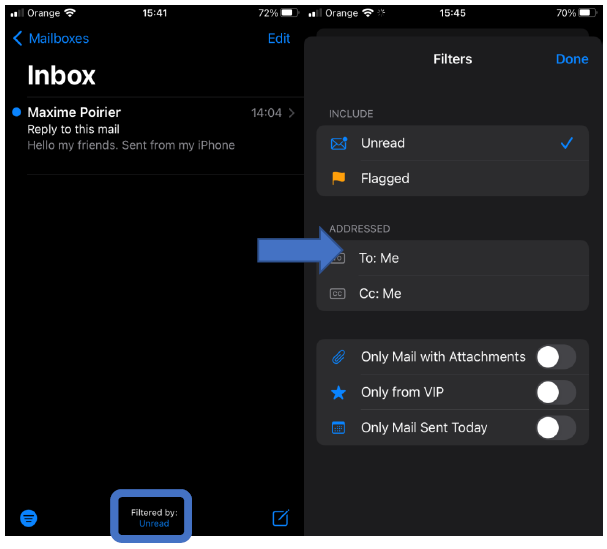
2. Among the things you can filter by are:
-
- Read or not read,
- Marked or not marked,
- E-mails addressed,
- E-mails in copy,
- With or without attachments,
- Contacts VIP or not,
- E-mails received during the day.