
How to set up e-mail account on iPhone
You can set up your e-mail account directly on your iPhone with a series of taps.
For the following e-mail services, you need to have your e-mail address and password handy:
1. ICloud 3. Google Mail 5. MS-Exchange
2. Yahoo! 4. Outlook.com 6. AOL
To set up an email account on iPhone
1. Tap Settings on the Home screen, and then scroll down and tap Mail
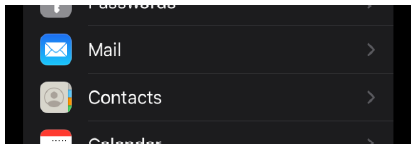
2. If you have no e-mail account, the Add Account screen opens directly, and if you have one you will see the Accounts screen
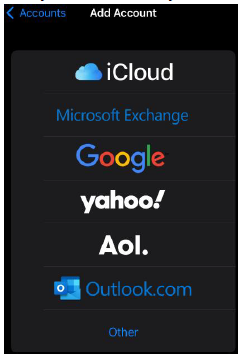
3. If you already have an account setted but want to add an iCloud account or any other account, tap “Add Account”

4. To add an iCloud account, Tap iCloud.

5. Type in the e-mail address and password associated with your Apple ID and then tap the Next button.
• If you don’t have an Apple ID, tap Get a Free Apple ID and follow the on-screen instructions to set one up.
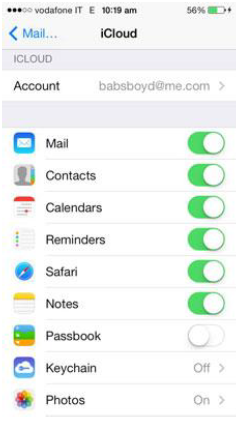
6. Once the account verified. The iCloud screen opens. And a message asks if you want iCloud to use the Location of Your iPhone
7. On the screen shown, you have a series of options and toggle switches that turn those options on.
Think which options you want
• Turning an option on means that the information in that app is shared between your iPhone and iCloud and any other devices you access iCloud with, such as an iPad, Mac, or Windows PC.
• Any time you make changes to one of them on one device, the changes go up to the iCloud and rain down on the other device.
8. Tap Mail On, and you receive your iCloud mail on your iPhone.
Set up Google Mail, Yahoo!, AOL, and Outlook.com accounts on your iPhone
If you use Gmail, Yahoo!, AOL, or Outlook.com, do the following:
1. Tap Settings on the Home screen, then scroll down and tap Mail.
2. Tap Add Account. The Add Account screen opens.
3. Tap the name of the account you use; for example, Google Mail, also known as Gmail.
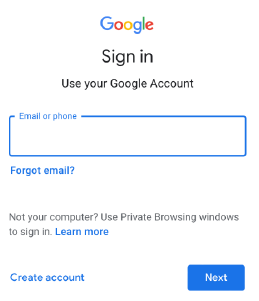
4. The Google Mail (or Yahoo! or AOL or Outlook.com) sign in web site open.
Then enter your e-mail address in the Address field and your password in the Password field.
5. Tap the Sign in button to verify your account and the Google Mail (or one of the others) screen opens. You have a few options to consider turning on or off, depending on the services you use. For our purposes, turn on Mail.
6. This connects you to your e-mail account so that messages download to your iPhone in the Mail app and you can send messages from your e-mail account in Mail.
7. Tap Save, and your account is added to the Accounts list of Mail settings.
How to set up other IMAP and POP e-mail account on iPhone
If you or your company uses another e-mail provider, it’s probably an IMAP (Internet Message Access Protocol) or POP (Post Office Protocol account).
1. Tap Settings on the Home screen, then scroll down and tap Mail Tap Other at the bottom of the list.
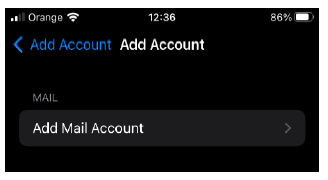
2. Tap Add Mail Account, the first button on the screen.
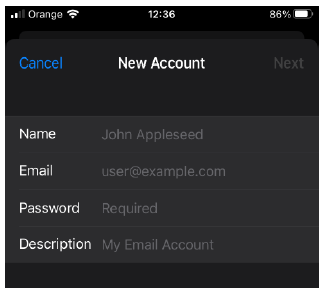
3. A New Account screen opens. Fill in your name, address (your e-mail address), your password, and a description if you want something different than what is automatically entered.
3. Once done, tap Next.
4. Mail looks for your account and verifies it.
• Your iPhone automatically recognizes if it’s an IMAP or POP account and presents the appropriate choices.
5. Tap the options, such as Mail or Notes, to the On position to have that data accessible from your iPhone.
6. Tap Save, and your account is added to the Accounts list of Mail settings.