
How to set up Find My
Make sure that you set up Find My so that if you ever lose an Apple device or item you can locate it. Even personal item with can be locate, you just need to attache an AirTag to it.
On the face of it, Apple’s Find My feature does what it says. If you lose your iPhone, you can identify its last known location by looking in the Find iPhone app or on the iCloud Web site. And you can make it play a sound. It’s great for tracking down a missing iPhone, whether you misplaced it in the house or left it behind at a restaurant.
But Find My does much more! For starters, it works with nearly any Apple device. You can use it to locate a missing Mac, iPad, iPod touch, Apple Watch, and even AirPods. Find My also helps protect your data if a device is stolen. It even works with Family Sharing to locate devices owned by anyone in your family.
To set up Find My:
1. Open the Settings app.

2. Tap your name, then tap Find My
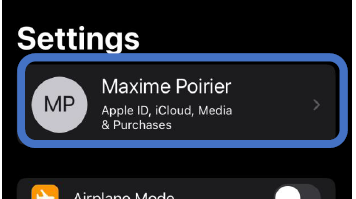
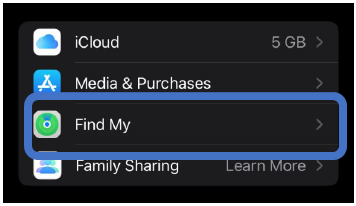
3. If you want friends and family to know where you are, turn on Share My Location.
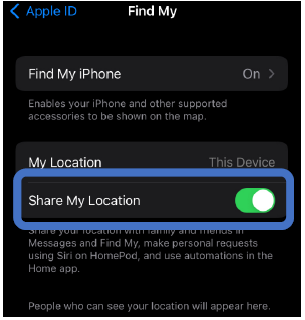
4. Tap Find My [device], then turn on Find My [device].
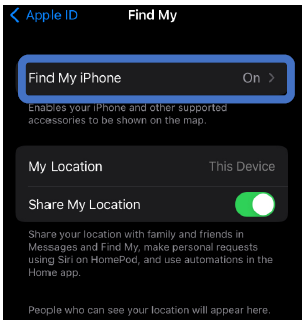
Find My has a few tricks up its sleeve. For when you want a device to show a message or if you think it was stolen:
- Lost Mode: When invoking this mode for an iOS device or Apple Watch, you’ll be asked to enter a phone number where you can be reached and a message.
- Lock: Available only for the Mac, the Lock feature enables you to protect an entire Mac with a 4-digit custom passcode.
- Erase: Even if your device has an excellent passcode or password, you might worry that a thief will access your data.
- Activation Lock: This feature prevents someone who has your passcode but doesn’t know your Apple ID and password from setting it up for a new user.
You must turn on Find My before your device goes missing!