Customize sounds and vibrations on iPhone
You can customize sounds and vibrations that come from your iphone when you receive a notification. A call, a text/voice message, email, or any other type of notification.
The iPhone offers several ways in which you can control and customize the sounds played when you receive an email, text message or other event types. The volume buttons and "Ring/Silent" switch can also be used to control whether your phone alerts can be heard and the volume at which they are played.
Also, your phone's "Sounds" menu can be used to control how and when these sounds activate; Enabling you to customize your experience with the iPhone.
In adition, text notifications that appear on your iPhone come with the option of alerting you with a sound whenever you receive a text. Assigning different text tones to each contact lets you know who sent you a text without looking at your phone. If the text sounds don't work on your iPhone, you may have turned them off.
Set sound and vibration options
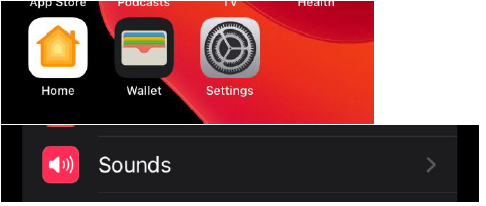
1. Go to Settings > Sounds.
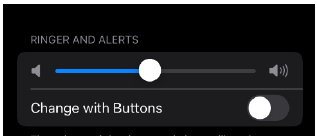
2. To set the volume of all sounds, drag the slider under Ringtone and Alerts.
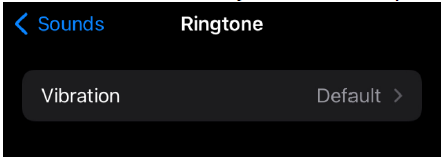
3. To set sounds and vibration sequences, tap a sound type, such as a ringtone or text tone.
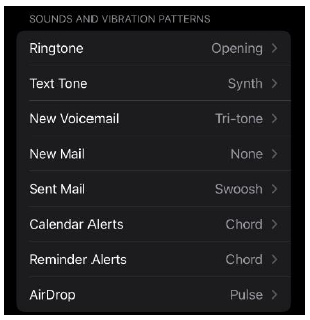
4. Then do one of the following:
o Choose a sound (scroll down to see them all).
▪ Ringtones go off for incoming calls, clock alarms as well as timer, SMS sounds apply to SMS, new voice messages and other alerts.
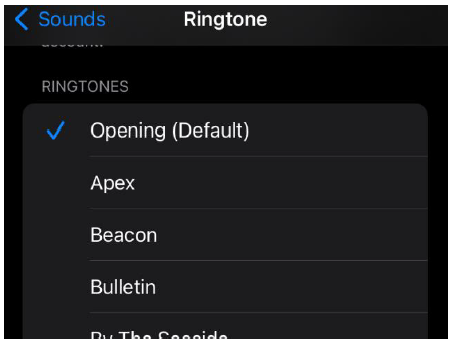
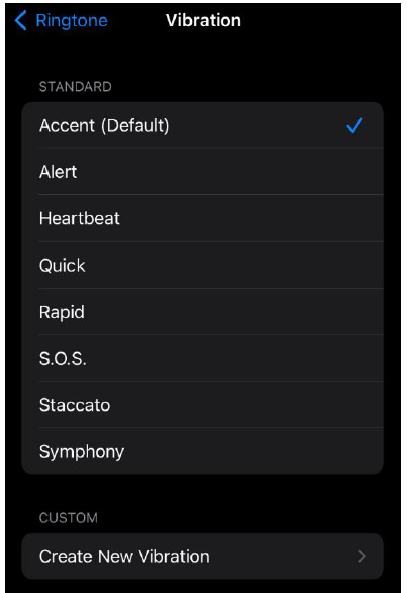
o Tap Vibration, then choose a vibration sequence, or tap Create Vibration to create your own sequence.