
How to manage notifications on iPhone
Every day you receive notifications from your apps on your iPhone, but sometimes these are just unnecessary notifications from apps that aren’t really important, I’ll show you how to manage these on your iPhone.
You can customize the notifications of certain applications. To manage notifications on iPhone, you will need to choose to enable/disable notifications for the desired apps. But also the ability to set up a specific ringtone for each app and choose how you want notifications to appear when your device is unlocked.
Here is how you can disable them and definitely silence them down.
1. Launch the Settings app on your iPhone and select Notification center

2. Select the app you want to remove from Notification Center.
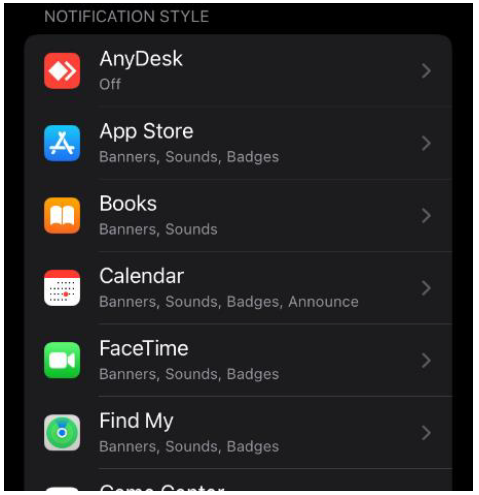
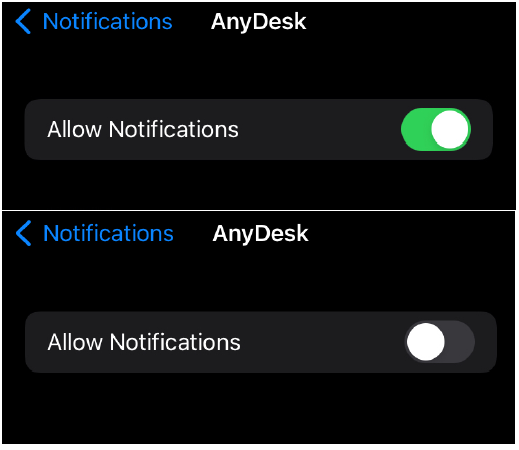
4. Toggle the Allow Notifications switch on or off.
In addition, the Badge setting means that you will be alerted to a notification not sent by a counter on the icon of the application.
How to Manage notifications with Concentration mode
When you use a concentration mode, it delays the arrival of notifications on the iPhone to avoid interruptions. You can set the time you want to receive a summary of the notifications you missed.
You can also enable Urgent Notifications from the apps themselves, allowing apps that are not on your authorized list to send notifications marked as urgent.
- Go to Settings > Concentration.
- Tap one of the options. Such as Do Not Disturb, Time for Self, or Rest. Activate the chosen concentration mode.
- After this first choice, select options such as Notifications Allowed, Urgent Notifications and Concentration Status.
You can also enable Concentration from the Control Center. Open the control center with a swipe up from the bottom of the screen, and touch "Concentration" for a long time. Next, select the concentration mode you want to enable.