
How to sync iCloud
iCloud settings let you choose which apps on your device will sync with iCloud to stay up to date. Learn how to sync iCloud and change the settings or turn off iCloud completely.
When you turn on iCloud for an app, its information is safely stored in iCloud and automatically kept in sync across your devices connected with your Apple ID account. Then, if you turn it off, the app will no longer connect with iCloud, so your data will exist only on your device.
First :
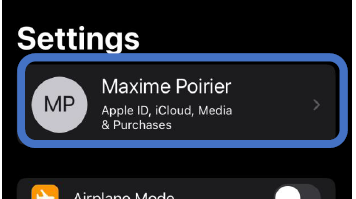
1. Go to Settings > [your name].
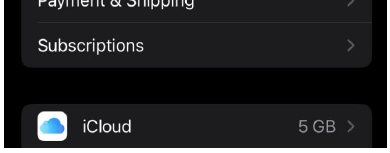
2. Tap iCloud.
3. Then tap to choose which apps you want to use iCloud.
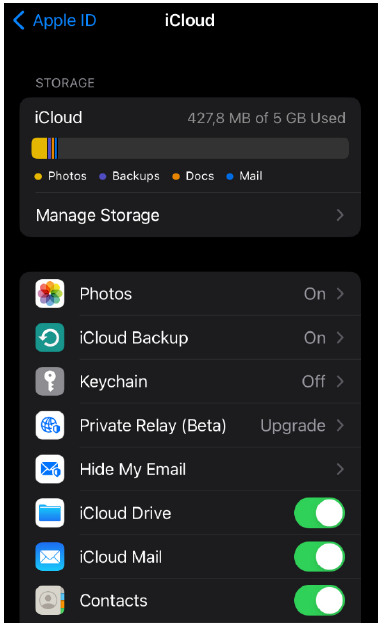
By the way, if you run out of iCloud storage, your device won't back up to iCloud. As a result, new photos and videos won't upload to iCloud Drive, and other iCloud apps, and messages won't stay up to date across your devices. In addition, you also won't be able to send or receive emails with your iCloud email address.
However, you can free more space by cleaning apps and media that you no longer need or want to keep. Or pay for more space storage.
You can select what is protected and what is not, including Calendars, Contacts, Health Notes, Photos, Reminders, Wallet, and more. There are also third-party apps that can be connected to your iCloud account. Add and revoke these permissions at any time.
Having your information backed up to the cloud has two benefits. If you ever lose your Apple device, your information (ranging from contacts to photos), will be saved to iCloud. You can then go to iCloud.com to retrieve this data or sign in with your Apple ID to automatically restore all this data on your new Apple device.