
How to search on Mac
Fortunately, this feature exists. Because yes performing a search on a mac is very convenient to find files, given the complexity of this operating system.
Spotlight can find apps, documents, photos, and other files on your Mac, and more from sources like the Internet. You can even get conversions, calculations, and definitions from it.
You can also ask Siri to search something for you (that is her job thought )
Search on Mac with Spotlight
1. Click the Spotlight icon (if displayed) in the menu bar, or press Cmd + Spacebar.

2. In the search field, enter the subject of your search and the results will be displayed as you type.

a. You can find files on your Mac by simply entering the search terms. For example, you can enter "photos taken in Poland" or "Maxime emails."
b. You can find results on the web and in the iTunes Store or App Store.
c. You can open an app: Enter the name of the app, such as Preview, and then press Return.
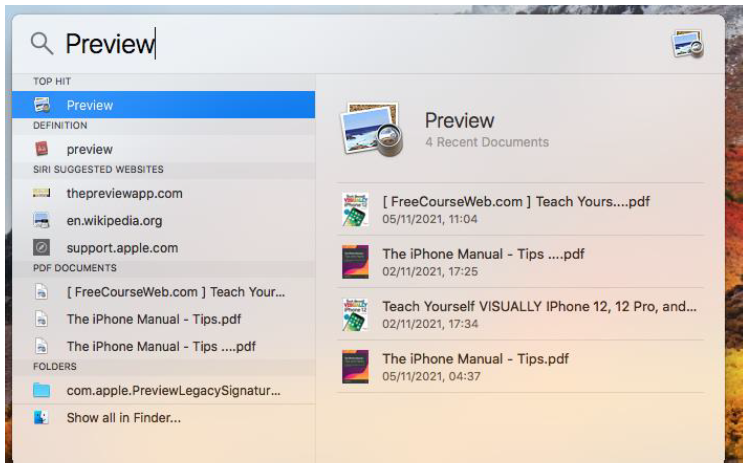
d. You can drag the Spotlight window anywhere on the desktop.
View and use your search results
3. Open an item: Select the item from the list of results on the left, and then press Return. Otherwise, double-click the item.
4. View the location of a file on your Mac: Select the file from the list of results, then hold down the Cmd key to display the location of the file at the bottom of the preview.
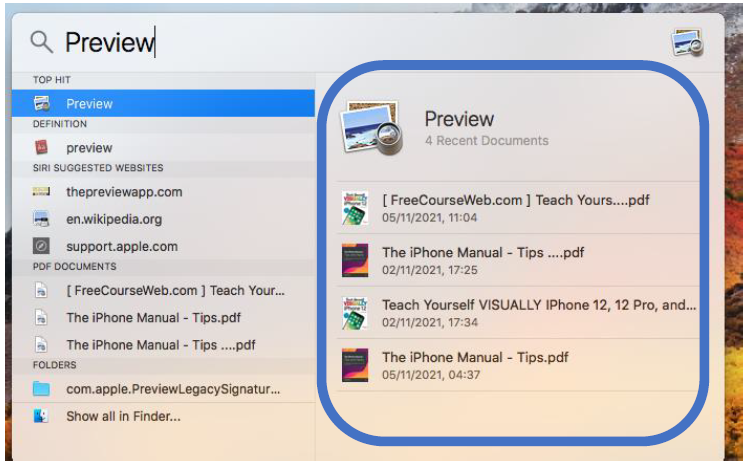
5. View recently used files in an app: Enter the name of the app (don't press Return unless you want to open the app). To open a file, double-click it in the preview.
Get conversions, calculations, and definitions
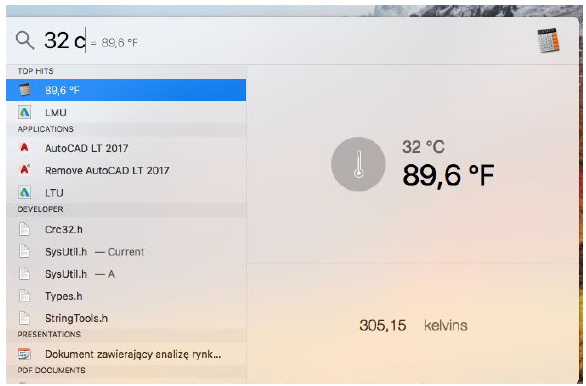
1. To convert temperatures: Enter a temperature such as 98.8°F or 32°C. Otherwise, enter "340°K in F" for example.
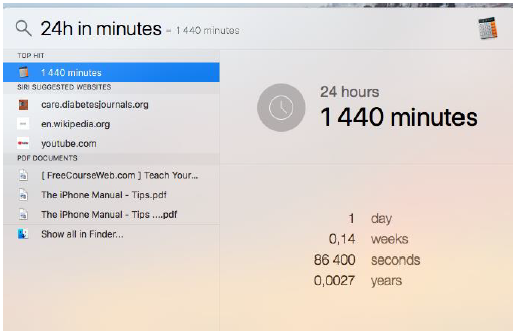
2. To convert measurements: Enter a measure such as 25 lbs, 54 meters, or 23 stone. Otherwise, enter "24h in minutes" for example.
3. To perform a calculation: Enter a mathematical expression, such as 345 * 24,6
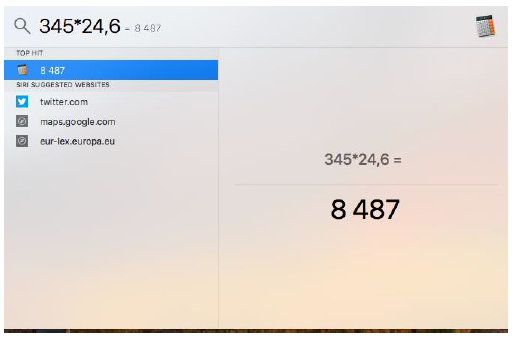
4. Get a definition: Enter a word or phrase, and then click the result in the Definition section.

Search on Mac with Finder
Although the Search box on your MacBook Finder toolbar is all you usually need to find most files and folders, sometimes you need a little more flexibility and power to locate what you need on your system. You can add the Find controls which you can use to create custom searches with more complex criteria.
To locate a file by using the Find controls:
1. With the Finder active, display the Find controls by pressing Cmd+F (or choose File from the Finder menu and then choose Find).
• Mac OS X displays the controls that you see here.
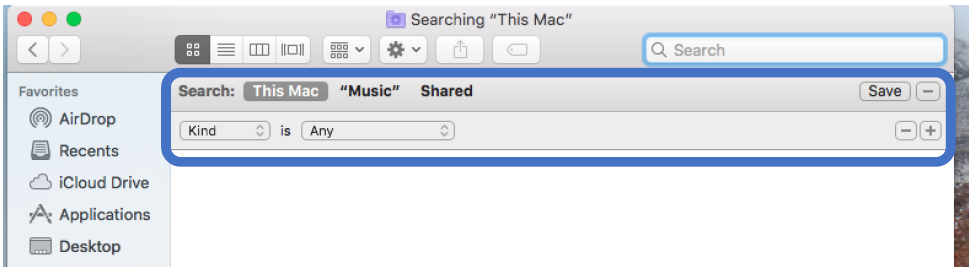
2. Click the buttons at the top of the list to specify where you want to search.
• You can choose This Mac (your entire system, including network volumes) or a local volume.

3. To search for a specific filename, click the first pop-up menu in the Search Criteria strip at the top of the window and choose Name; then type all or part of the filename in the Contains box.
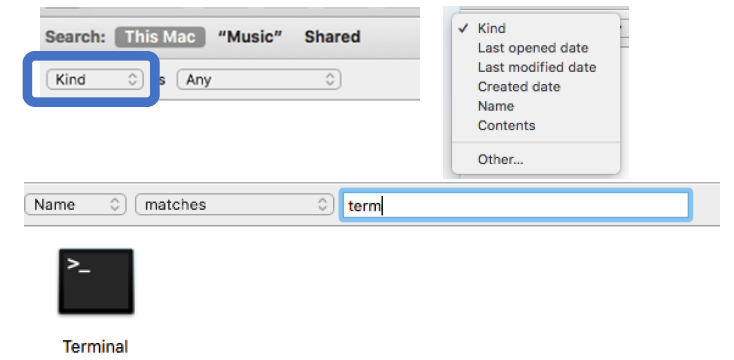
4. After you locate the file or folder that you need, click the entry name to reveal the location of the matching file or folder in the path bar at the bottom of the window. You can also double-click it to launch (or display) it.
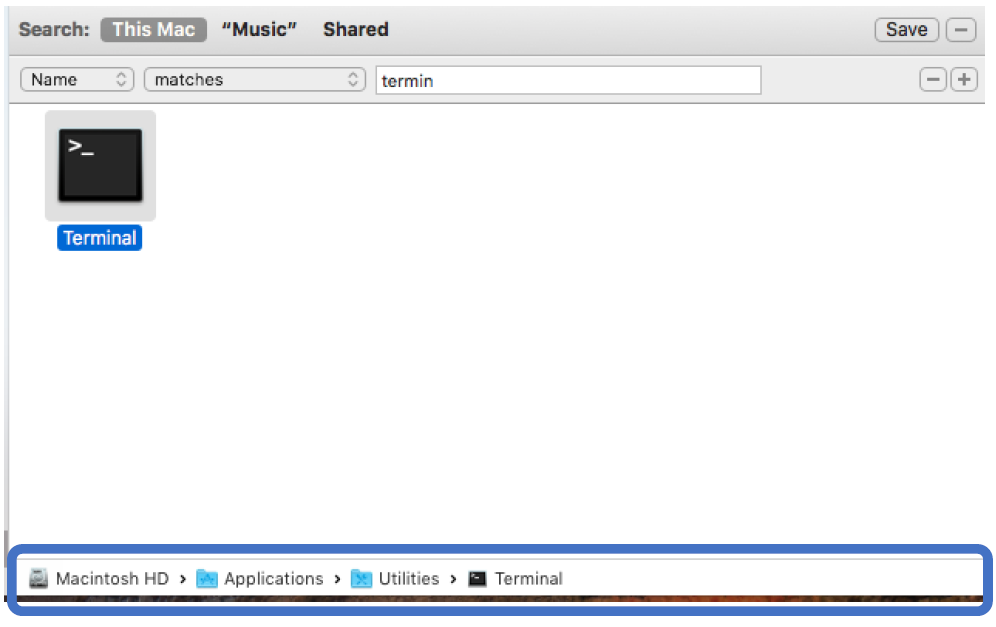
5. If you want to search for a text string within the document itself, click the first pop-up menu in a row, choose Contents, and then type the string to match in the box.
• The text must appear just as you’ve typed it, so it’s always a good idea to restrict what you’re searching for to a minimum of words that you’re fairly sure will cause a match.
6. To include additional search criteria lines, click the button with the plus sign next to the last criterion line.
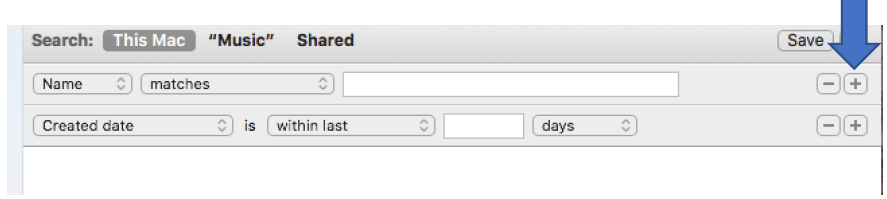
• You can limit your results based on all sorts of rules, including the date that the file or folder was last modified, when it was created, the file type, the size, the extension, or whether the file or folder is marked visible or hidden (such as a system file).
7. To save the search criteria that you selected, click Save.
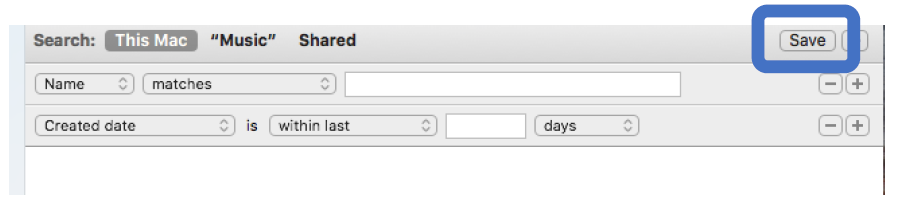
• This creates a Smart Folder, which (you’re gonna love this) Lion automatically updates (in real time) to contain whatever items match the criteria you’ve saved! You can specify the location for your Smart Folder, and you can choose to add it to your Finder Sidebar for the ultimate convenience
8. When you’re done canvassing your computer, click the Back button in the Find dialog to return to the Finder.