
MAC COMMON KEYBOARD SHORTCUTS
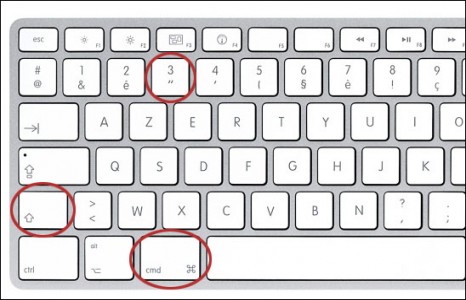
The shortcuts are useful to know. But the Mac common keyboard shortcuts are different to Windows.By pressing certain key combinations, you can do things that normally need a mouse, trackpad, or other input device. To use a keyboard shortcut, press and hold one or more modifier keys and then press the last key of the shortcut.
Mac menus and keyboards often use symbols for certain keys, including modifier keys:
Command (or Cmd) ⌘ Option (or Alt) ⌥
Shift ⇧ Control (or Ctrl) ⌃
Caps Lock ⇪ Fn
On keyboards made for Windows PCs, use the Alt key instead of Option, and the Windows logo key instead of Command.
Cut, copy, paste, and other Mac common keyboard shortcuts
- Command-X: Cut the selected item and copy it to the Clipboard.
- Command-C: Copy the selected item to the Clipboard. This also works
for files in the Finder. - Command => V: Paste the contents of the Clipboard into the current
document or app. This also works for files in the Finder. - Command => Z: Undo the previous command. You can then press Shift => Command => Z to Redo, reversing the undo command. In some apps, you can undo and redo multiple commands.
- Command => A: Select All items.
- Command => F: Find items in a document or open a Find window.
- Command => G: Find Again: Find the next occurrence of the item previously found. To find the previous occurrence, press Shift =>
Command => G. - Command => H: Hide the windows of the front app. To view the front app but hide all other apps, press Option => Command => H.
- Command => M: Minimize the front window to the Dock. To minimize all
windows of the front app, press Option => Command-M. - Command => O: Open the selected item, or open a dialog to select a file
to open. - Command => P: Print the current document.
- Command => S: Save the current document.
- Command => T: Open a new tab.
Command => W: Close the front window. To close all windows of the app, press Option => Command => W. - Option => Command => Esc: Force quit an app.
- Command => Space bar: Show or hide the Spotlight search field.
- Control => Command => Space bar: Show the Character Viewer, from which you can choose emoji and other symbols.
- Command => Tab: Switch to the next most recently used app among your open apps.
- Shift => Command => N: Create a new folder in the Finder.
- Shift => Command => 5: In macOS Mojave or later, take a screenshot or make a screen recording. Or use Shift => Command => 3 or Shift-
Command => 4 for screenshots.
Sleep, log out, and shut down keyboard shortcuts
You might need to press and hold some of these shortcuts for slightly longer than other shortcuts. This helps you to avoid using them unintentionally.
- Power button: Press to turn on your Mac or wake it from sleep. Press and hold for 1.5 seconds to put your Mac to sleep. Continue holding to force your Mac to turn off.
- Option => Command => Power button: Put your Mac to sleep.
- Control => Command => Power button: Force your Mac to restart, without prompting to save any open and unsaved documents.
- Control => Command => Q: Immediately lock your screen.
- Shift => Command => Q: Log out of your macOS user account. You will be asked to confirm. To log out immediately without confirming, press Option => Shift => Command => Q.
Finder and system keyboard shortcuts
- Command => D: Duplicate the selected files.
- Command => E: Eject the selected disk or volume.
- Command => F: Start a Spotlight search in the Finder window.
- Command => I: Show the Get Info window for a selected file.
- Command => R: (1) When an alias is selected in the Finder: show the original file for the selected alias. (2) In some apps, such as Calendar or Safari, refresh or reload the page. (3) In Software Update preferences, check for software updates again.
- Shift => Command => C: Open the Computer window.
- Shift => Command => D: Open the desktop folder.
- Shift => Command => F: Open the Recents window, showing all of the files you viewed or changed recently.
- Shift => Command => G: Open a Go to Folder window.
- Shift => Command => H: Open the Home folder of the current macOS user account.
- Shift => Command => I: Open iCloud Drive.
- Shift => Command => K: Open the Network window.
- Option => Command => L: Open the Downloads folder.
- Shift => Command => N: Create a new folder.
- Shift => Command => O: Open the Documents folder.
- Shift => Command => P: Show or hide the Preview pane in Finder windows.
Common keyboard shortcuts to browse on Finder
- Shift=> Command => R: Open the AirDrop window.
- Shift => Command => T: Show or hide the tab bar in Finder windows.
- Shift => Command => U: Open the Utilities folder.
- Option => Command => D: Show or hide the Dock.
- Option => Command => P: Hide or show the path bar in Finder windows.
- Option => Command => S: Hide or show the Sidebar in Finder windows.
- Command => Slash (/): Hide or show the status bar in Finder windows.
- Command-J: Show View Options.
- Command => K: Open the Connect to Server window.
- Command => N: Open a new Finder window.
- Option => Command => N: Create a new Smart Folder.
- Command => 1: View the items in the Finder window as icons.
- Command => 2: View the items in a Finder window as a list.
- Command => 3: View the items in a Finder window in columns.
- Command => 4: View the items in a Finder window in a gallery.
- Command => Left Bracket ([): Go to the previous folder.
- Command => Right Bracket (]): Go to the next folder.
- Command => click a window title: See the folders that contain the current folder.