
HOW TO SHARE SCREEN USING FACETIME
Thanks to a new screen sharing feature called SharePlay, you can now share your screen with other people on a Facetime call, which is great for choosing a movie, browsing through a photo album, or anything else that's enhanced by group discussion.
But to enjoy this feature, both your and your friend's iPhone should be running on iOS 15.1.
Here's how the new screen sharing feature works:
1. Launch FaceTime on your iPhone or iPad.
2. Tap New FaceTime and add the contacts that you want to share your screen with, then tap the FaceTime button. Alternately, select a recent contact to initiate a video call.

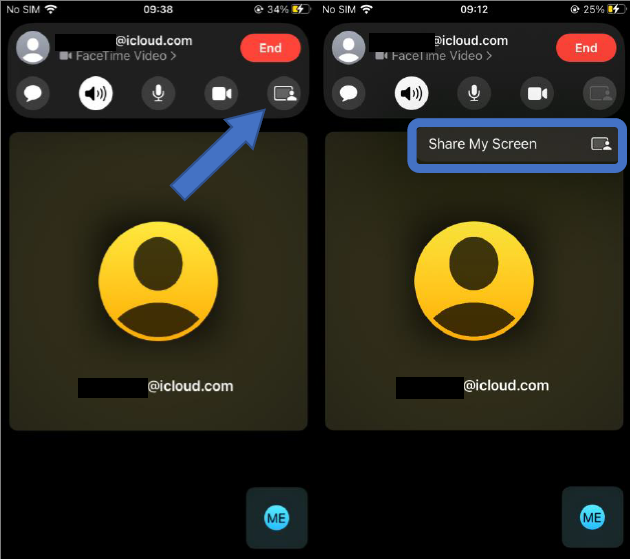
3. When the call has connected, tap the SharePlay button at the top-right corner of the screen in the new control panel.
4. Tap Share My Screen in the dropdown. After a three-second countdown, screen sharing should initialize.
Once
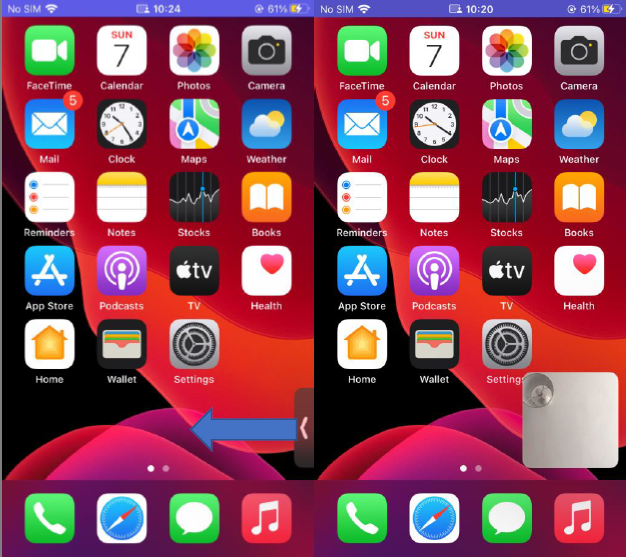
Once FaceTime screen sharing has started, you can navigate to any app that you want to share with the callers.
A sharing icon will remain in the top of the screen to indicate that FaceTime screen sharing is active, and you can tap it to reveal the FaceTime control panel.

You can swipe away the active caller's face for more screen space, and swipe them back into view just as easily.
If you like, you can also listen to music or watch movies and TV together using the SharePlay interface…