How to send an email from Mail App on iPhone
Checking emails isn't something you do on your Mac anymore. Most people prefer to check and send emails on the go. Fortunately, you can easily send an email from Mail App on iPhone with just a few taps.
The first thing to do, as you can guess, is to set up an email account on the iPhone. During the initial setup procedure, you must already have connected your "iPhone by" to an iCloud account: You can see which one by opening the app settings (the gear icon on the home screen) and pressing your name.
To send an email:
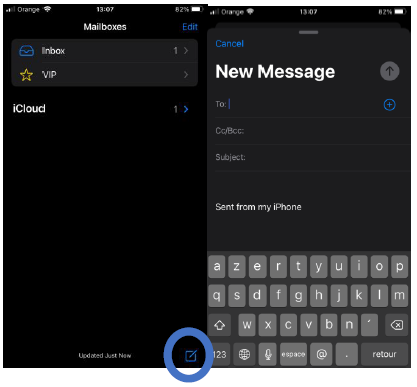
1. Launch the Mail app from the Home screen of your iPhone
2. Tap the compose button in the bottom right corner of your screen.
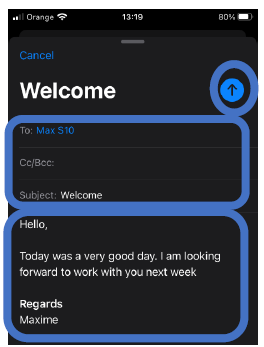
3. Enter the email address or name of the person to whom you'd like to send a message.
• You can also enter the email addresses of people you'd like to CC or BCC
4. Tap the Subject field, and add your subject.
5. Tap the message field and type your message.
6. Tap Send in the top right corner of your screen when you're finished with your message.
7. Once your message has been sent, it will say so in the status bar at the bottom of your screen.